 securetools.live • November 2026
What Is Document Management? A Beginner's Guide to Control, Search and Versioning


Document management is the practice, usually supported by software, of capturing, storing, finding, controlling and eventually disposing of an organization's documents in a consistent way. A document management system adds what a folder cannot: access control, version history, search by content and metadata, audit trails, approval workflows and retention rules. Small teams can start with disciplined naming and versioning; larger or regulated teams usually need a dedicated system.
Compare document management platforms and their security controls on SecureTools.
The Plain Definition
Document management is the set of habits, rules and tools that keep an organization's documents under control from creation to disposal. A document management system, often shortened to DMS, is software that stores, shares, tracks and manages electronic files, and many systems also record version history that shows which versions were created and edited by whom.
It helps to see where the term sits in a bigger picture. The industry body AIIM defines information management as the ability of an organization to capture, manage, preserve, store and deliver the right information to the right people at the right time, across electronic and physical information and across its lifecycle. In AIIM's description, document management is one of several technology solutions that support that goal, alongside areas such as enterprise content management and business process management.
In plain terms, document management answers a handful of everyday questions: Where is the latest version? Who changed it? Who is allowed to see it? How long must we keep it? How do I find it in ten seconds? If your team struggles with any of those, you are already doing document management, just without much help.
Why Shared Folders Run Out of Road
Most organizations begin with shared folders, and for a while they work. Problems appear when the number of documents, people and rules grows. Files get copied into other folders and emailed as attachments. Two people edit separate copies of a contract. The folder structure that made sense to its creator confuses everyone else, and nobody is sure whether the version called final is the real one.

A folder is a place to put files. It does not know what a document is, who approved it, which version is current or when it should be deleted. Those missing pieces are what a document management system supplies. They are also what auditors, customers and regulators tend to ask about.
If you are weighing a drive against a dedicated system, our comparison of cloud storage and document management systems sets out the differences in detail. This article stays with the fundamentals.
Eight Core Capabilities of a Document Management System
Different products package features differently, but descriptions of document management systems consistently include the same building blocks.
| Capability | What it does | A question it answers |
|---|---|---|
| Capture | Brings in scanned paper, often with optical character recognition, and existing electronic files | How do paper and email attachments become managed records? |
| Indexing and metadata | Stores details such as author, date and category, plus extracted text, to classify documents | What is this document, and how does it relate to others? |
| Storage and lifecycle | Keeps documents and manages where and how long they are kept, including eventual destruction | Where does this live, and when does it go? |
| Search and retrieval | Finds documents by identifier, metadata or full text | Where is the contract signed last March? |
| Version control | Lets users check documents in and out and recover earlier versions | Which version is current, and what did it say before? |
| Security and access control | Restricts access by document type, user or group and protects against unauthorised change | Who may read, edit or share this? |
| Audit trails | Records history and changes | Who did what, and when? |
| Workflow | Routes documents for review or approval through manual or rules-based steps | Has this been approved, and by whom? |
Many systems add collaboration, integrations with other applications and publishing features that produce controlled, read-only versions such as PDFs. You do not need all of these on day one; you need to know which ones address your real problems.
Control: Who Can Do What to Which Document
The first pillar is control. A system should let you decide, per document type, user or group, who can view, edit, approve, share and delete. This is more granular than a typical folder permission, and it comes with a record of what actually happened.
Good control has a few traits. Access is granted to roles or groups rather than to dozens of individuals. Sensitive categories, such as HR or finance records, have tighter defaults. External sharing is deliberate and can be reviewed. And every change to access is logged, so that you can answer an auditor who asks who could open a document last quarter.
If you are new to the terminology of access, file sharing permissions explained is a useful companion, and a periodic permission audit keeps control from drifting.
Versioning: Knowing Which Copy Is Current
The second pillar is version control. Descriptions of document management systems list check-in and check-out among the core features, so that users can recover earlier versions and resume work from them. The practical benefit is simple: there is one current version, everyone can find it and the history is preserved.

Microsoft's documentation for SharePoint libraries shows how this looks in a mainstream product. You can choose between major versions only or major and minor versions, set a limit on how many versions and drafts to retain, require documents to be checked out before editing, control who can see draft items and require content approval. From version history you can view, restore or delete earlier versions; restoring adds the old version as a new version rather than rewriting history.
Even without a DMS, you can adopt the discipline: one location per document, a version marker in the file name and a rule against emailing attachments. Our guide to document version control for non-technical teams turns these into plain rules.
Search and Metadata: Finding Things Without Remembering Folders
The third pillar is findability. A folder tree forces everyone to guess how the original author filed something. Indexing, metadata and full-text search let people retrieve documents by what they contain and what they are. Systems typically allow searching by identifier, metadata or full text, and some can search across several repositories.
Metadata is the quiet hero. A contract with fields for counterparty, effective date, renewal date and owner can be found, sorted and reported on in ways that a file name alone cannot support. It also feeds other functions, such as retention rules that start from a contract end date.
You can start without special software by agreeing on required details and a naming pattern. See file naming and metadata standards for a practical approach.
Workflow and Approvals
Workflow routes a document through steps: draft, review, approval, publication, archive. In a document management system that routing can be manual or rule-based, so that, for example, a policy over a certain sensitivity must be approved by two named roles before it is published.
The reason it matters is reliability. Without workflow, approval lives in email threads and memory, and nobody can prove who approved what. With it, the state of each document is visible, reminders are automatic and the history is kept.
Document control in regulated settings usually means reviewing and approving documents before release, clearly identifying revisions, keeping current versions available where they are used and preventing the use of obsolete ones. We cover designing these flows in document approval workflows explained.
Retention, Holds and Disposal
Documents should not live forever by accident. A mature system lets you assign retention periods, pause deletion for legal reasons and destroy documents in a controlled way, keeping evidence that the process ran. Descriptions of document management systems include managing how long documents are kept, moving them between storage tiers and eventually destroying them.
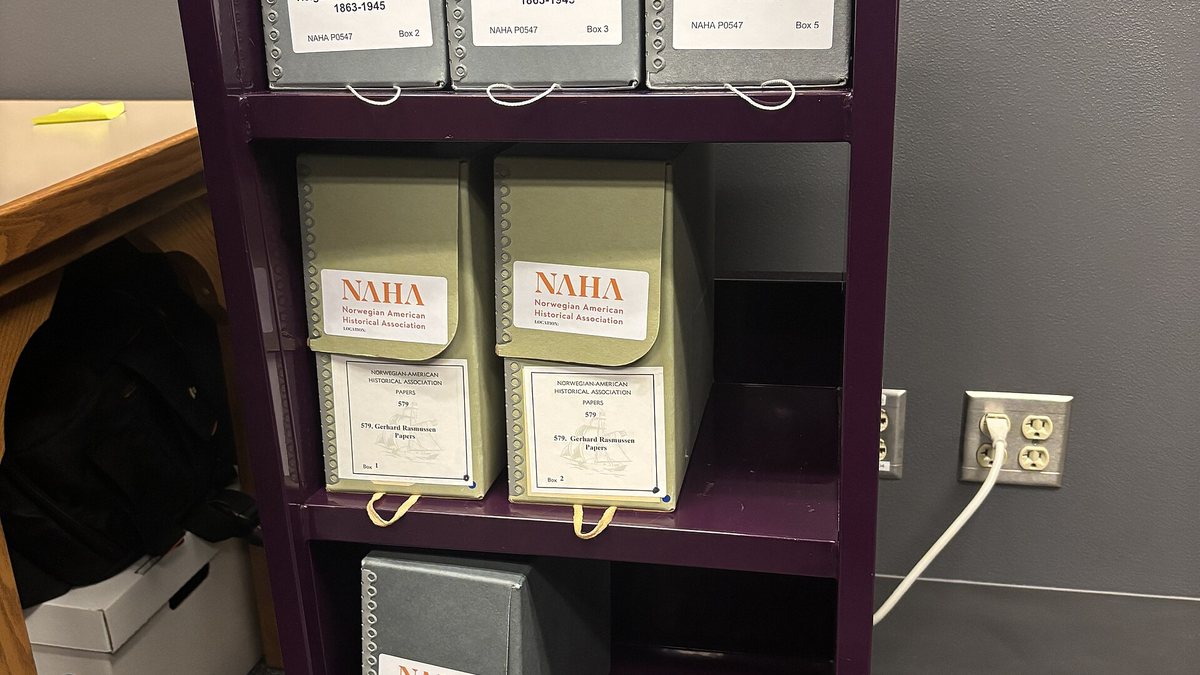
This links document management to records management. The international standard ISO 15489 addresses records management, and organizations in regulated industries often have to demonstrate that records were kept and disposed of according to policy. If you are starting from nothing, learn how to build a schedule in how to build a document retention schedule.
Plan for holds as well. A hold suspends deletion for a matter such as a dispute or investigation, and your system should record when it was placed and released.
A Short History That Explains Today's Features
The history explains why modern systems look the way they do. In the 1980s, electronic document systems appeared to digitize paper records, mainly for large enterprises and government agencies, and FileNet, founded in 1982, combined imaging with basic workflow. In the early 1990s, document management became a distinct software category as version control, access management and full-text retrieval were added and as personal computer networks made them necessary.
By the late 1990s, search-first interfaces had become expected. Around 2000 the term enterprise content management was introduced as web content, email and media joined documents, and AIIM formalized it in 2002. That is why today's platforms often bundle document management with collaboration, records and workflow tools.
Do You Actually Need One?
Not every team needs a dedicated system. Signs that you might include the following.
- People regularly work from different versions of the same document.
- You cannot say quickly who may see, edit or share a given document.
- Customers, auditors or regulators ask for evidence of approval or change history.
- You must retain and dispose of records according to rules.
- Finding documents takes too long, or relies on one person's memory.
- Approvals happen in email and nobody can reconstruct them.
If none of these apply, careful use of a good cloud drive, with naming rules and version habits, may be enough. A system adds cost and change for people; adopt one when the pain justifies it.
How to Start Small
- List your ten most important document types and name an owner for each.
- Decide the single storage location for each type, and retire duplicates.
- Agree on a naming pattern and a few required details, such as date, owner and status.
- Turn on version history, and write down the rule for who may create a new version.
- Review access for sensitive types, and use groups instead of individuals.
- Draft a simple approval path for the documents that matter most.
- Set provisional retention periods with your advisers, and mark them for review.
- Try one area for a month, collect feedback, then expand.
A Beginner's Evaluation Checklist
If you decide to buy, test products against your own documents and processes, not against a demonstration. Pay attention to the following.
- Permissions: can access be set by role and document type, and reviewed easily?
- Versioning: does it support check-in and check-out, history and restore?
- Search: does it handle full text and metadata, including scanned documents?
- Audit: can you export a record of views, edits and sharing?
- Workflow: can you model your real approval steps without custom coding?
- Retention: can rules start from events such as contract end, and can holds be applied?
- Security: how is data encrypted, where is it stored and what evidence does the vendor provide?
- Exit: can you export documents and metadata in a usable form?
For market comparisons, see our review of the best document management systems, and use the checklist above to look past feature lists.
Adoption Mistakes That Sink Projects
- Buying software before agreeing on naming, ownership and retention basics.
- Migrating every old file, including clutter, instead of curating what matters.
- Building a complicated folder tree that mirrors the organization chart and changes with every reorganization.
- Giving everyone broad edit rights because it is convenient on day one.
- Skipping training, so people keep emailing attachments.
- Leaving no owner for the system after launch.
- Measuring success by feature use rather than by whether people can find and trust documents.
Frequently Asked Questions
It is the way an organization controls its documents from creation to disposal: where they are stored, who can access them, which version is current, how they are found and when they are deleted. Software called a document management system supports this with version history, search, permissions, audit trails, workflows and retention rules.
Sources and Further Reading
This guide draws on the pages below. Vendor documentation and standards change, so check the current version before relying on a detail.
- Document management system overview on Wikipedia (en.wikipedia.org)
- Enable and configure versioning for a SharePoint list or library (support.microsoft.com)
- AIIM definition of information management (aiim.org)
Related Articles

About the Author: Mohamed Siraj
Mohamed is the founder of SecureTools.live. He leads the team in building secure, compliant, and privacy-first directory tooling for software teams, finance professionals, and enterprise security leaders worldwide.